

In this post, we walk through a simple method for retrieving daily exchange rates from Danmarks Nationalbank directly into Microsoft Dynamics 365 Business Central. By automating the exchange rate update, you eliminate manual errors and ensure that the system always uses accurate and authoritative rates.
Automatic exchange rates provide a more reliable basis for posting, reporting, and financial closing, while also saving time for the finance department by reducing manual updates. Proper currency management is also essential for international trade, where accurate exchange rates support correct pricing and documentation.
Below, we show step by step how to configure Business Central to automatically retrieve exchange rates from Danmarks Nationalbank.
Let’s get started by opening Business Central. Then follow these steps:
-
Press Alt+Q and enter currency exch in the search field
-
Under Go to Pages and Tasks, select Currency Exchange Rate Services
-
On the Currency Exchange Rate Services page, choose + New
On the page that opens, enter DNB in the Code field and Danmarks Nationalbank in the Description field.
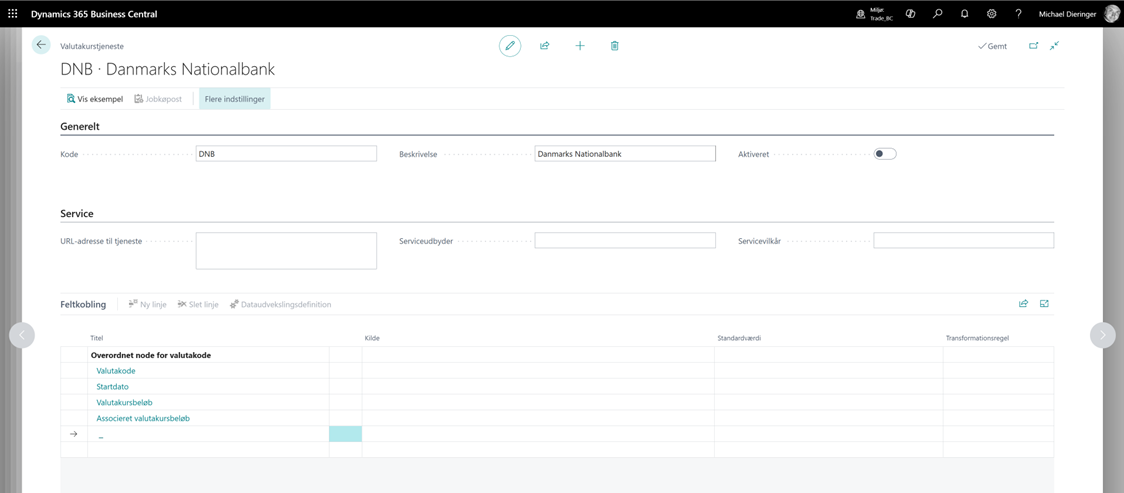
In the Service URL field, enter the following URL:
https://www.nationalbanken.dk/api/currencyratesxml?lang=da
Once this is completed, you have ensured that the service is functional, and you can now proceed to configure the Field Mapping. For this step, you must specify an iterative element on the line with the title Parent Node for Currency Code.
Select – in the Source field. A new window opens, where you must place the cursor on the currency element.
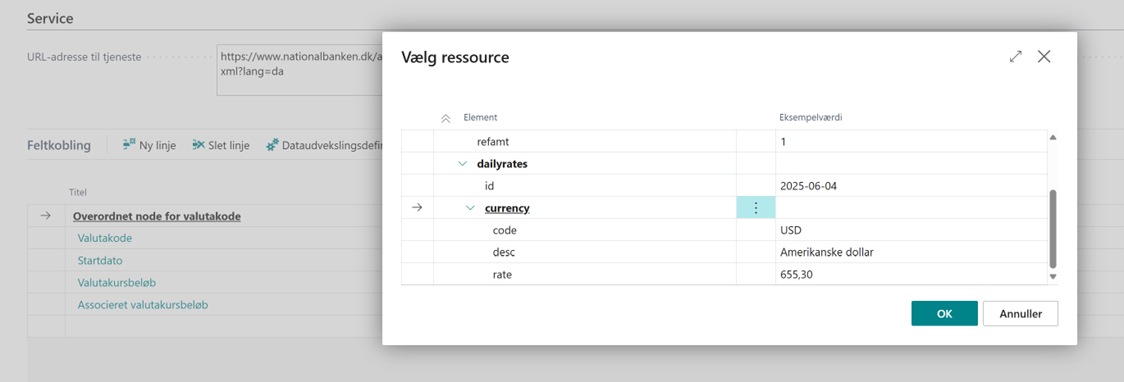
Choose OK to select the element.
Repeat the action for Currency Code – select code from the source.
For Starting Date, select id, which is located outside the currency loop.
For Relational Exchange Rate Amount, select rate from the source.
For the Exchange Rate Amount field, leave the Source field empty, but set the Default Value field to 100.
Finally, specify that the Exchange Rate Amount uses Danish number formatting. This is done by selecting DK_DECIMALFORMAT in the Transformation Rule field.
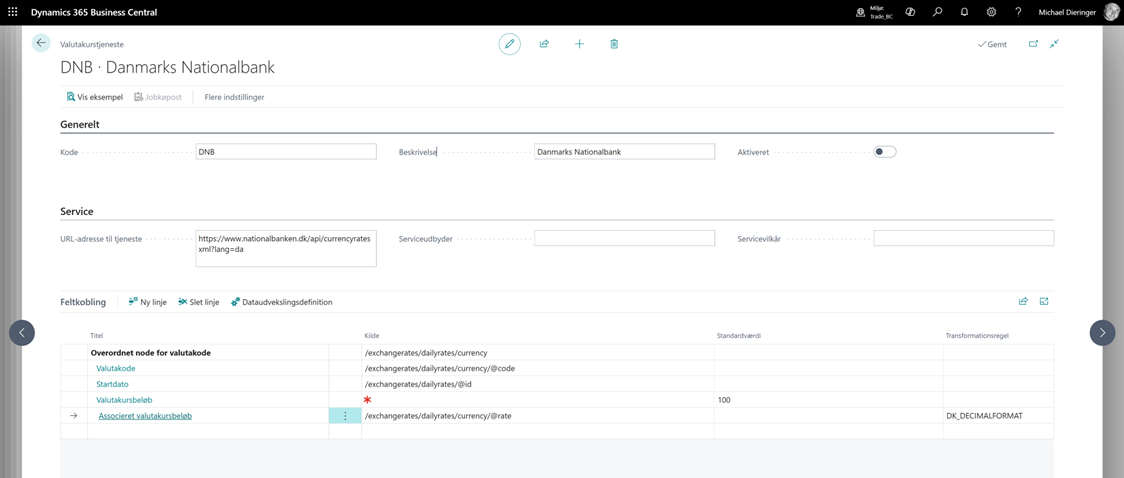
You have now completed the initial setup for a periodic process, enabling you to update exchange rates automatically. Before proceeding with the automation, we recommend testing the result of the web service.
To do this, choose Show Sample on the Currency Exchange Rate Service action bar. The page that is displayed should contain all the currency codes available in the file that you previously viewed in your browser.
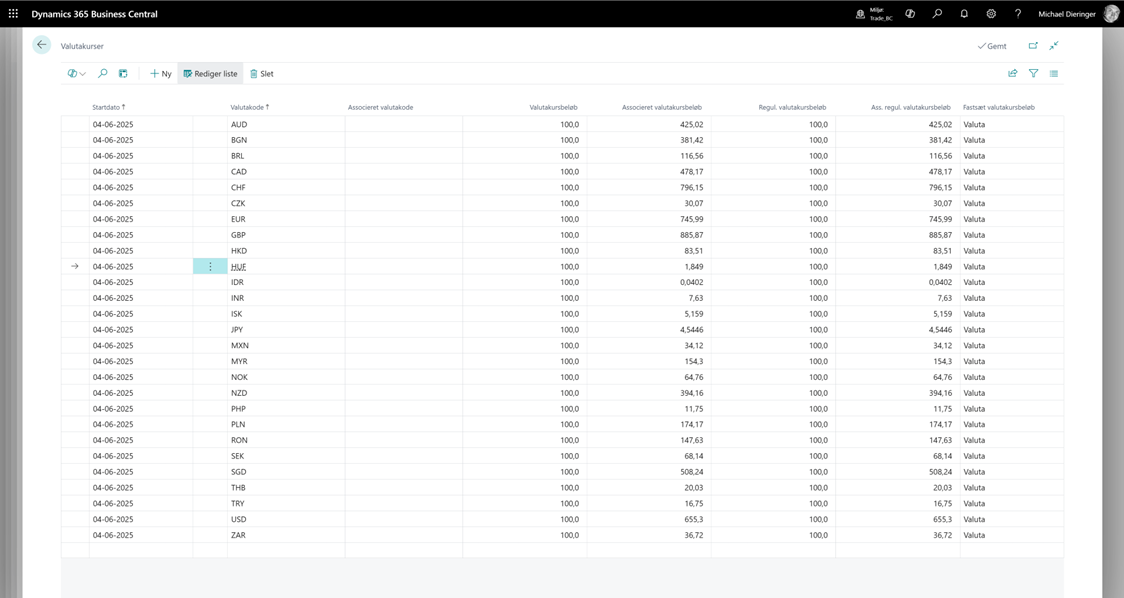
Automating the Exchange Rate Import
When you are ready to start the exchange rate update, activate the service by selecting the Enabled field.
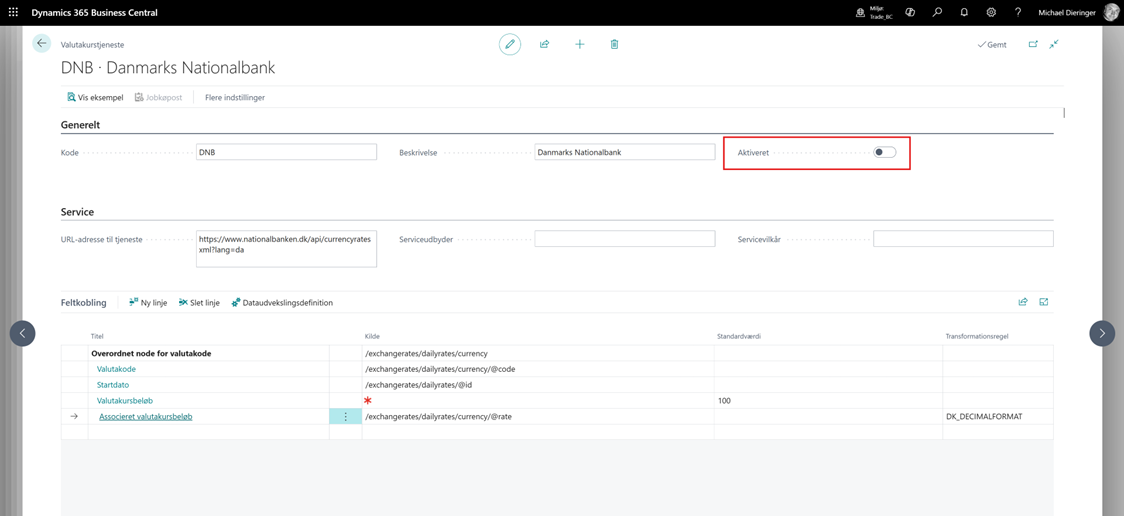
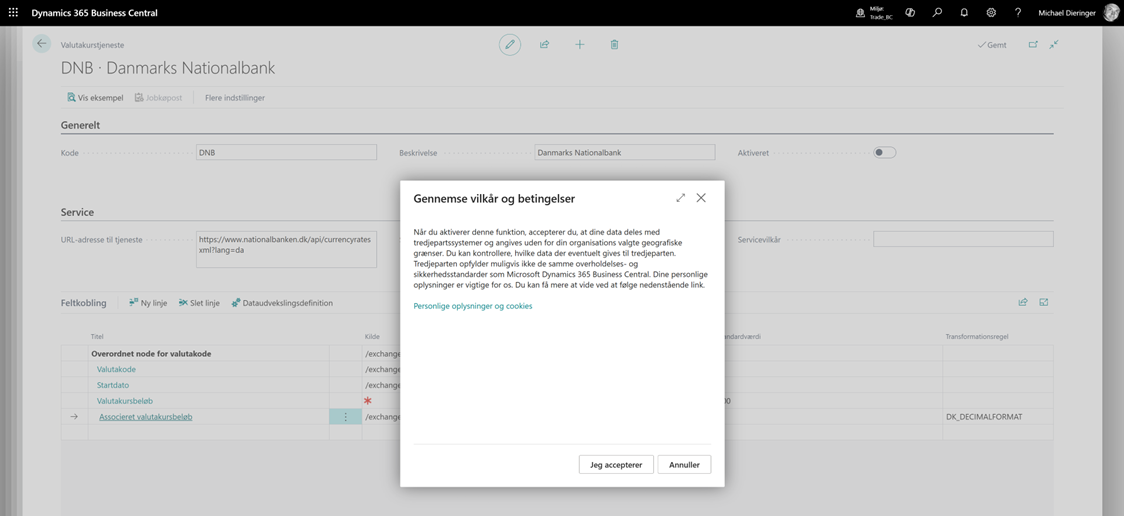
Immediately after you select Enabled, Business Central opens a dialog where you must accept the Terms of Service.
You can now configure a recurrence schedule for the automation. Select Yes in the next dialog, where Business Central asks whether you want to open the Job Queue Entries page.
On the Job Queue Entries page, you can define the recurrence intervals and the time of day when the task should run. For example, you can edit the start time in the Earliest Start Date/Time field. In our case, we have specified that the service should start at 07:00. Since all days of the week are enabled, the job will run daily at 07:00.
You can also configure the job to run, for example, on the first day of each month. This is done by using date formulas in the Next Run Date Formula field. If you would like to learn more about this option, please contact CURABIS at support@curabis.dk.
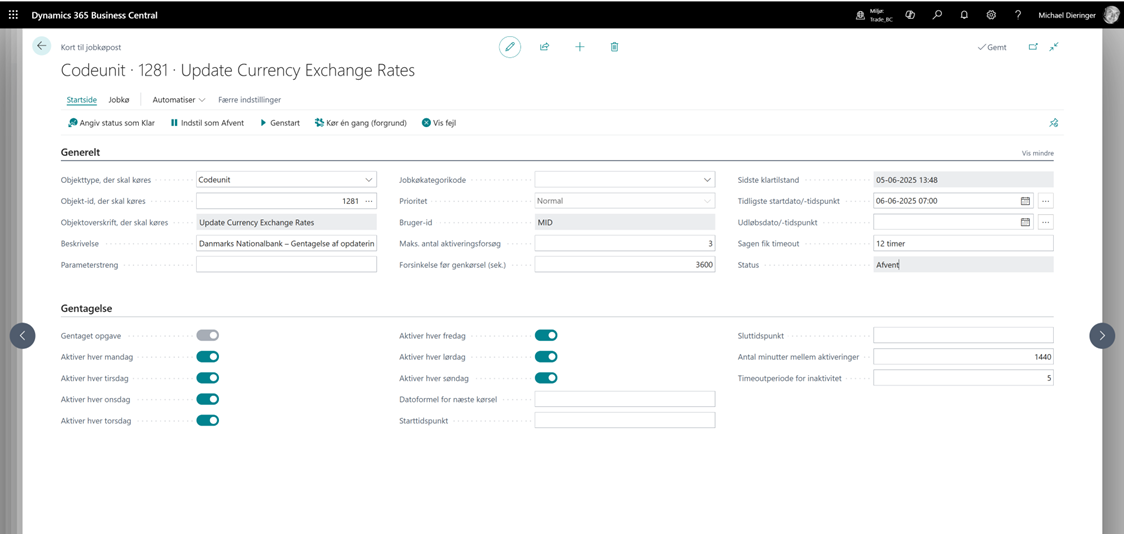
You have now successfully created and automated your periodic exchange rate update. To test the job, you can choose Run Once (Foreground).
Remember to activate the job queue entry by selecting Set Status to Ready.
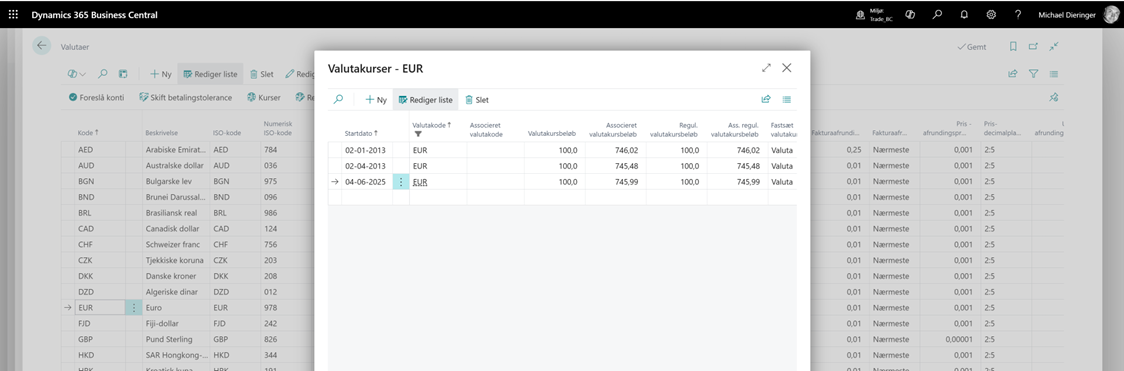
If the job runs without errors, you can navigate to the Currencies page and verify that new exchange rates have been created for today. In this example, we test the EUR currency code and can see that the exchange rate has been updated as of June 4, 2025, which is the date the job was executed and activated.
In this guide, we have walked through the entire process for automatically updating exchange rates in Dynamics 365 Business Central using the service provided by Danmarks Nationalbank. We have covered how to set up the service, ensure correct field mappings, and understand the underlying terms of service. With this solution, you receive accurate and authoritative exchange rates directly in your financial system, eliminating manual errors and time-consuming update routines.
If you have any questions along the way or would like more detailed guidance tailored to your specific implementation, please feel free to contact us. We are ready to assist with everything from technical configuration to process optimization, helping you get the full benefit of automated exchange rate management. Thank you for your attention, and best of luck with your integration of the exchange rate service in Business Central.


